Getting Started
Get ListGuard connected to Klaviyo and running your first profile audit in under five minutes.
Prerequisites
- A Klaviyo account with API access
- A ListGuard account (sign up at listguardhq.com )
Connect Klaviyo
Sign in to ListGuard
Visit app.listguardhq.com and sign in. ListGuard uses secure email-based authentication — no password required.
Welcome to the onboarding flow
New accounts are taken through a guided 3-step onboarding flow before reaching the dashboard:
- Welcome — an overview of what ListGuard does
- Connect Klaviyo — authorize ListGuard to access your Klaviyo account
- You’re ready — confirmation screen with a link to your dashboard
If you skip or close the flow, you can return to it at any time by visiting app.listguardhq.com/onboarding . The dashboard will redirect you back here if Klaviyo isn’t connected yet.
Connect your Klaviyo account
In step 2 of the onboarding flow, click Connect Klaviyo Account. You’ll be redirected to Klaviyo’s OAuth authorization page where you can review and approve the permissions ListGuard needs.
ListGuard requests read access to your profiles, metrics, and lists. It also requests write access to suppressions so it can execute suppression rules on your behalf.
ListGuard uses OAuth 2.0 with PKCE — it never stores your Klaviyo password or API keys.
Authorize the connection
After approving access, you’ll be redirected back to step 3 of the onboarding flow. Click View My Dashboard to enter the app. Your workspace will show Klaviyo connected in the top-right.
Run your first sync
ListGuard will immediately begin a full sync of your Klaviyo data. This fetches all profiles, engagement events (opens, clicks, purchases), and list membership. The first sync typically takes 30–120 seconds depending on your list size.
You’ll see the sync progress in Settings → Recent Syncs and the full history in the Audit Log.
Manage multiple Klaviyo accounts
ListGuard supports multiple workspaces — one per Klaviyo account. To add a second account:
- Click your workspace name in the top-left sidebar
- Select + Add workspace
- Give the workspace a name and repeat the connection steps above
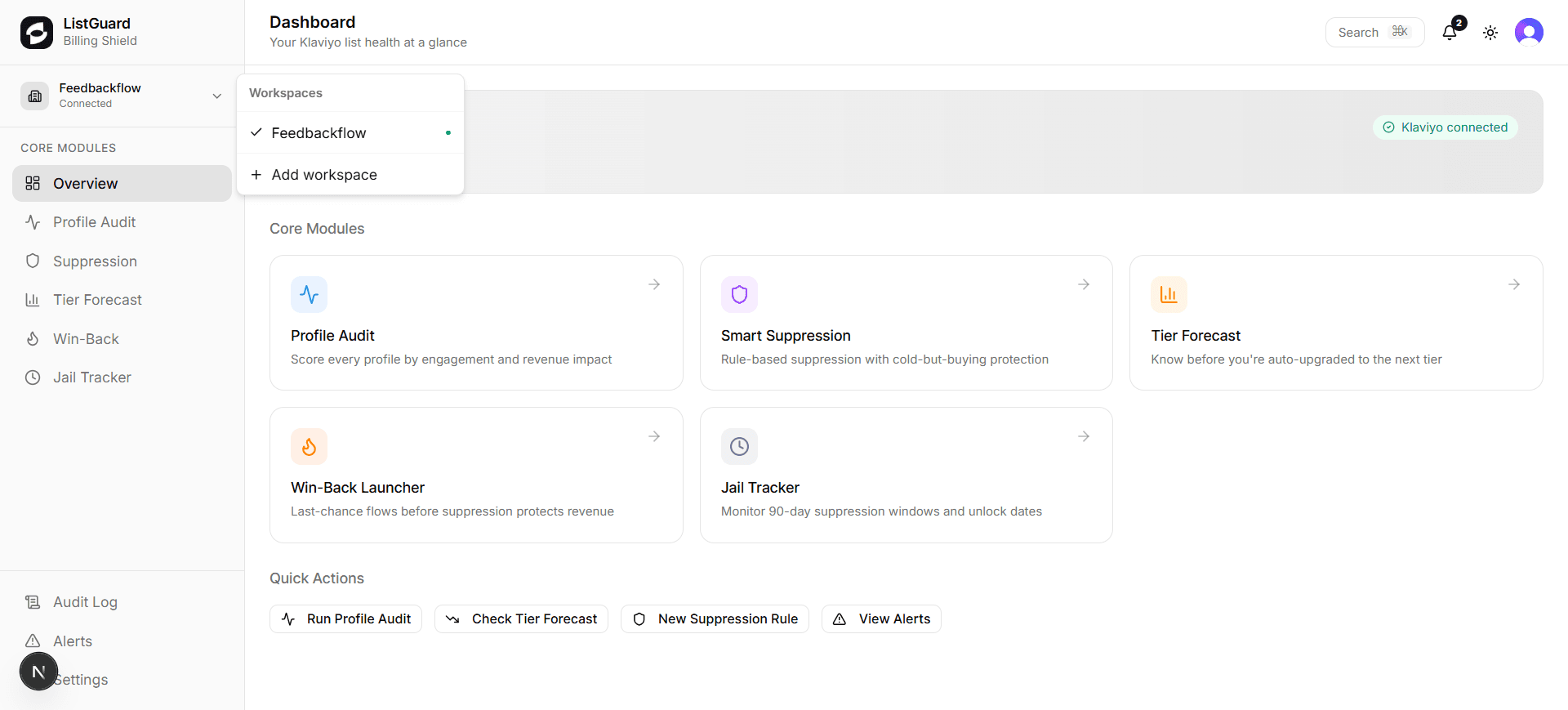
You can switch between workspaces at any time using the dropdown in the top-left corner.
Invite your team
Once your workspace is connected, you can invite teammates from Settings → Team Members. Each member gets a role that controls what they can access:
- Admin — full access except billing changes
- Suppression Manager — create rules and run campaigns
- Analyst — read-only reporting access
Agency accounts
If you’re on an Agency plan, add client workspaces from the sidebar and use the Agency section to manage all clients from one place — including aggregate reports and bulk suppression across all accounts.
Next steps
Once connected, head to Profile Audit to see a full breakdown of your list health.