Dashboard
The Dashboard is your command centre. It shows the overall health of your connected Klaviyo account and gives you one-click access to every ListGuard module.
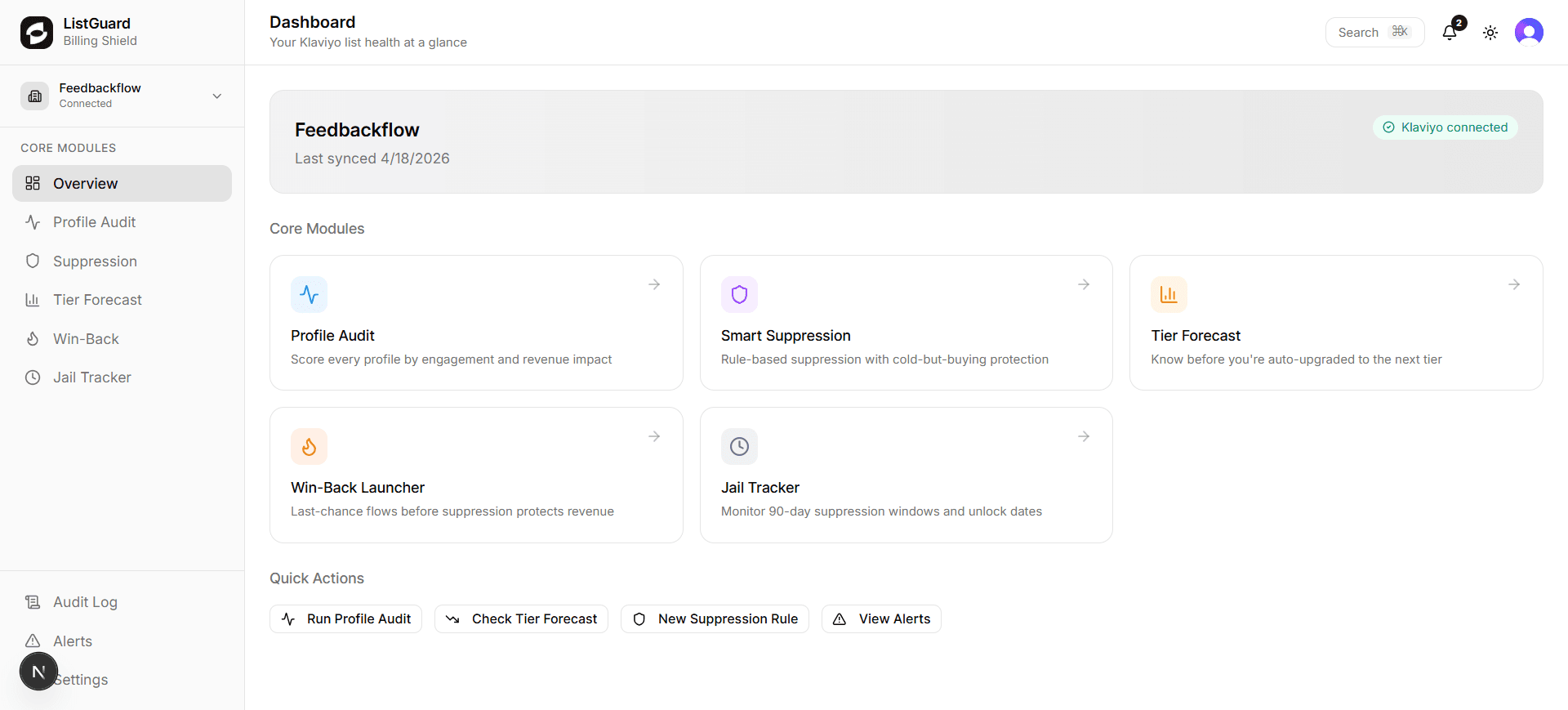
What you’ll see
Connection status
The top of the Dashboard shows your connected Klaviyo account name, the last sync timestamp, and a Klaviyo connected badge. If the connection is broken, a reconnect button appears here.
Wasted spend banner
If ListGuard detects dead profiles inflating your billing tier, a red banner shows exactly how many dead profiles you’re paying for and the estimated monthly savings from suppressing them.
Example: “You’re paying for 183 dead profiles — suppressing them could save you $25/month on your Klaviyo bill.” Click Fix this → to jump directly to Suppression.
Core Modules grid
Five cards link directly to each module. Each card shows the module name and a one-line description so you always know where to go.
Quick Actions
Four buttons at the bottom let you jump straight into the most common tasks without navigating to a module first:
- Run Profile Audit — trigger an immediate re-score of all profiles
- Check Tier Forecast — see your projected tier breach date
- New Suppression Rule — open the rule builder
- View Alerts — go to your notifications inbox